What Adform pixel allows you to do?
- Track actions users performed on your website, such as purchases, form submissions and specific page views
- Build retargeting audiences to use in Adform campaigns, such as audience members who visited any page on your website or specific pages
- Show dynamic content on your ads. For example show audience members products or services they previously viewed
Follow the steps below to set up the Adform pixel to your website
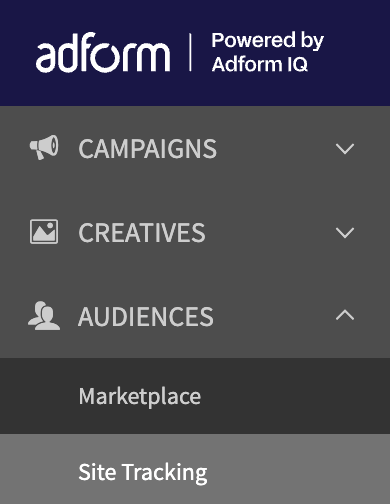
- In Adform Flow, head to Audiences -> Site Tracking
- Open Tracking Templates
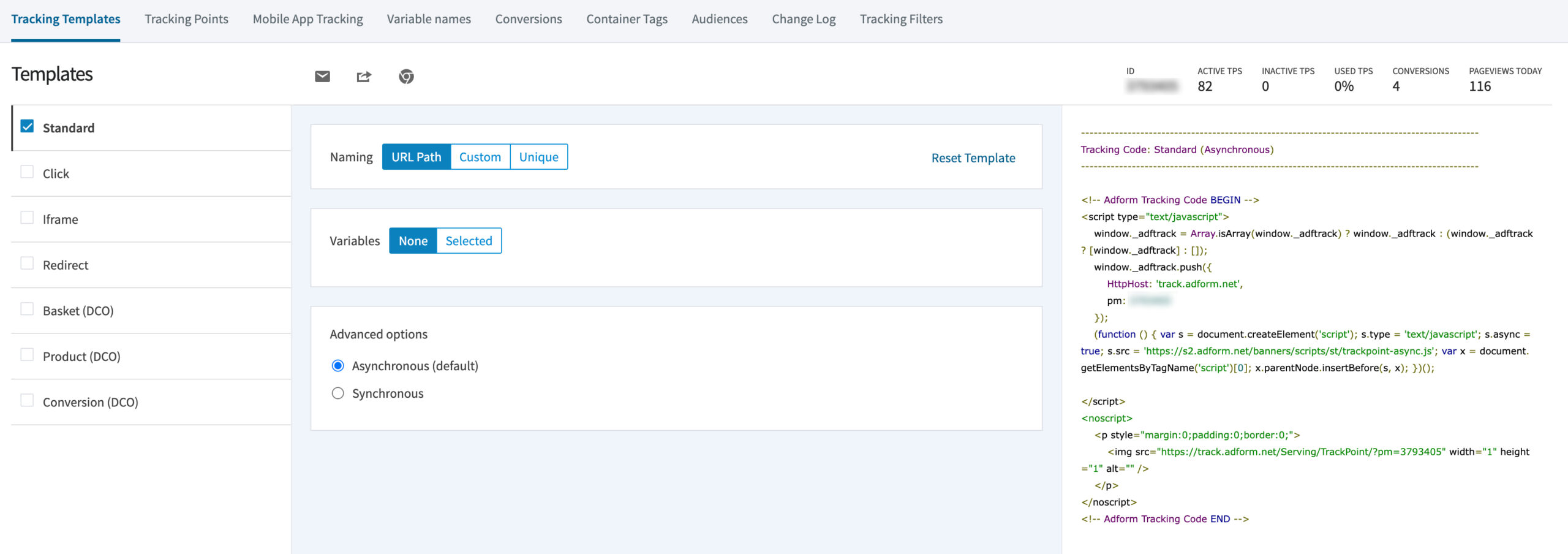
- Tracking template naming -> Select URL Path (basic setup)
- Tracking template variables -> Select none (basic setup)
- Tracking template advanced options -> Select Asynchronous (default)
- Copy Adform tracking code, it should look something like below:
<!-- Adform Tracking Code BEGIN -->
<script type="text/javascript">
    window._adftrack = Array.isArray(window._adftrack) ? window._adftrack : (window._adftrack ? [window._adftrack] : []);
    window._adftrack.push({
        HttpHost: 'track.adform.net',
        pm: 1234567
    });
    (function () { var s = document.createElement('script'); s.type = 'text/javascript'; s.async = true; s.src = 'https://s2.adform.net/banners/scripts/st/trackpoint-async.js'; var x = document.getElementsByTagName('script')[0]; x.parentNode.insertBefore(s, x); })();

</script>
<noscript>
    <p style="margin:0;padding:0;border:0;">
        <img src="https://track.adform.net/Serving/TrackPoint/?pm=1234567" width="1" height="1" alt="" />
    </p>
</noscript>
<!-- Adform Tracking Code END -->- Head to Google Tag Manager and create a new tag
- Choose Tag type -> Custom HTML. Paste the tracking code in the box
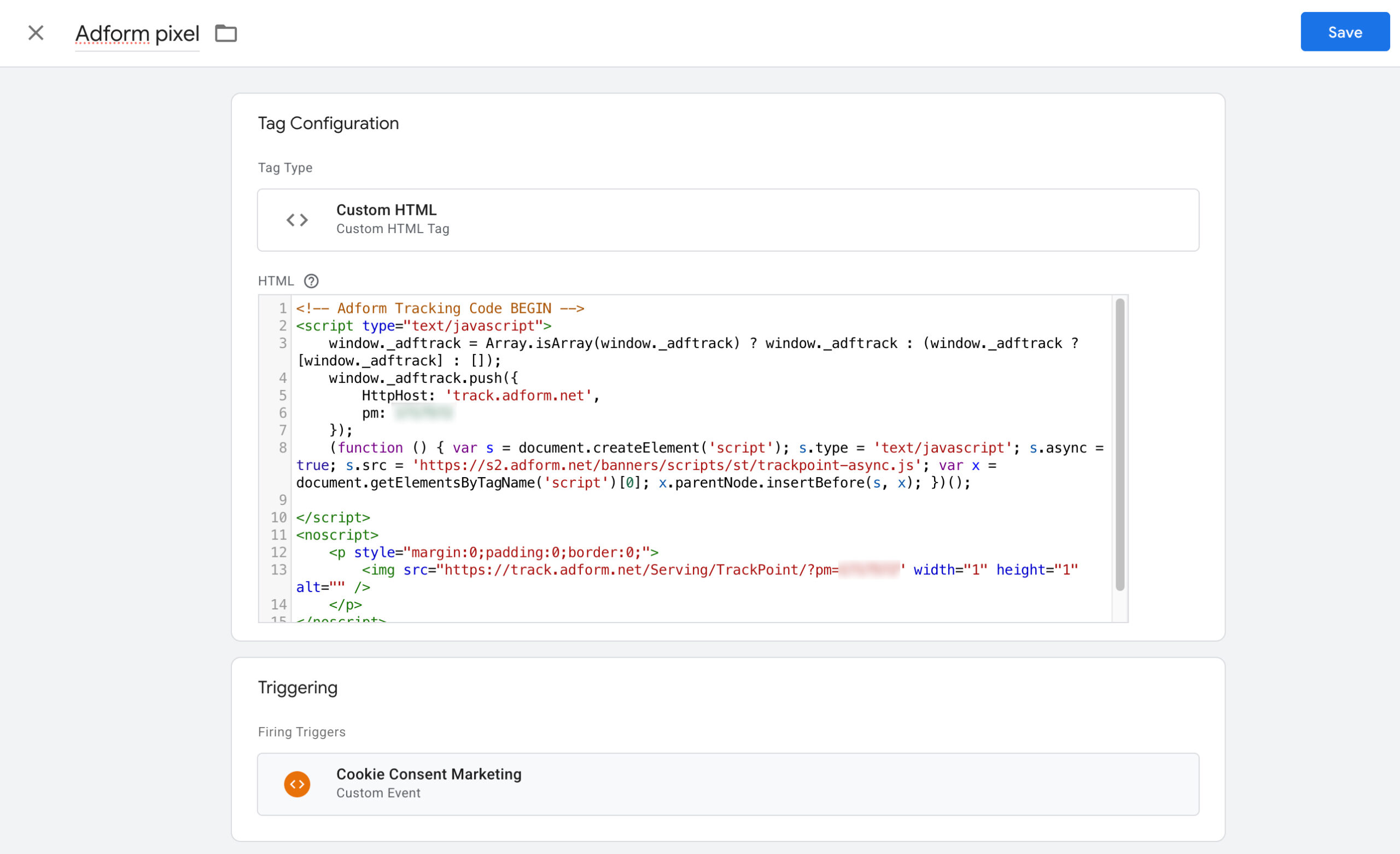
- Select a trigger that fires your tracking code. Ideally you have created a trigger that fires after the user has accepted the required cookies. If so, use that
- Give your tag a recognizable name such as “Adform pixel”. Save the tag
- Test your tag by pressing “Preview”
- You should now see your newly created tag firing. Now press “Submit” and you are all set!
If you don’t see your tag firing or you have some other issues or questions about Adform pixel, contact me below.
-Taneli